Premier Manufacturer

With the rapid development of computer technology, older interface standards, such as FireWire (IEEE 1394), have been gradually replaced by USB and Thunderbolt. However, many users still rely on FireWire devices for legacy equipment such as camcorders, audio interfaces, and external hard drives. This guide provides a detailed process for connecting FireWire devices to modern computers, including potential issues and solutions.
1. Understanding IEEE 1394 (FireWire)
The IEEE 1394, developed by Apple, was a high-speed data transfer interface offering faster performance than traditional USB 2.0. It is particularly suited for professional devices, such as video cameras and audio interfaces. There are two main versions:
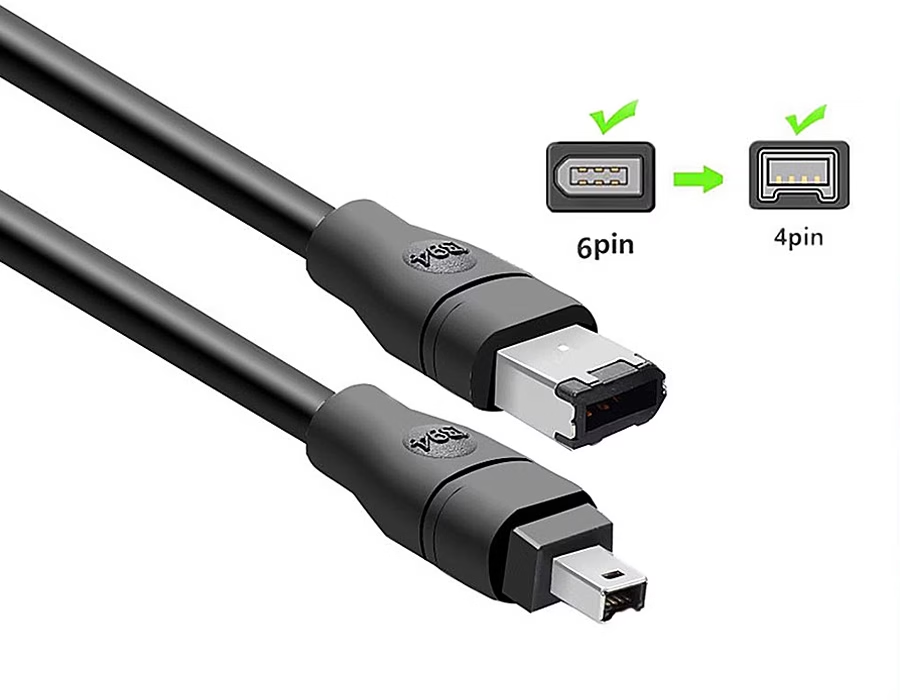
- IEEE 1394a (FireWire 400): 6-pin or 4-pin connector, speeds up to 400 Mbps (actual ~320-380 Mbps).
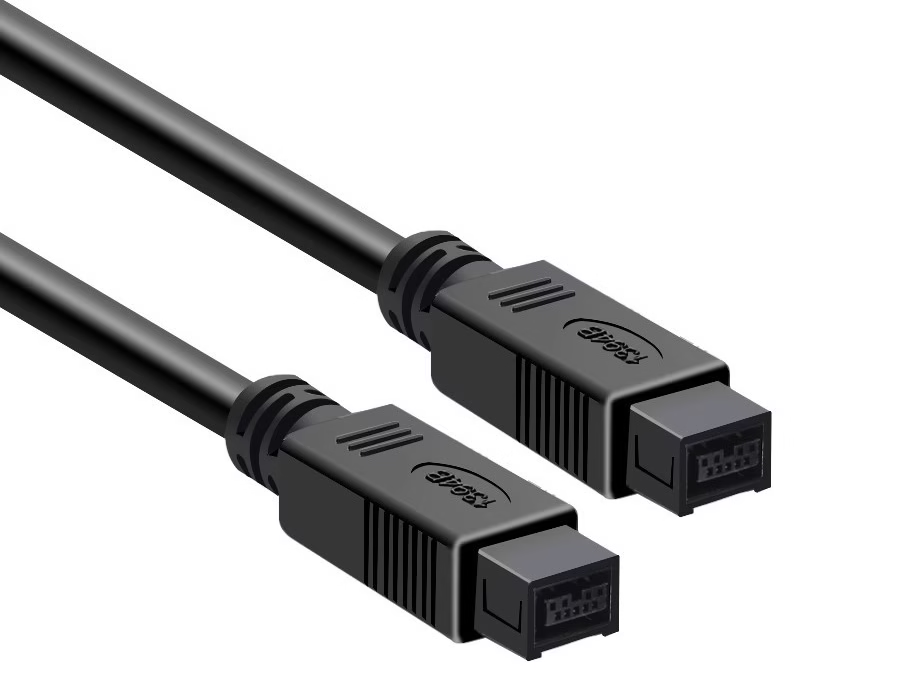
- IEEE 1394b (FireWire 800): This type of connection features a 9-pin connector and supports speeds of up to 800 Mbps (the actual speed is approximately 700-750 Mbps).
2. Checking Compatibility
- Computer: Most modern PCs (especially laptops) lack any FireWire (IEEE 1394) port. Check your computer’s specs or expansion options.
- Device: Verify the FireWire device works. If unsure, test it on an older computer with an IEEE 1394 port.
3. Adapters and Expansion Options
If no built-in FireWire port, add one via an adapter or expansion card.
- Thunderbolt→FireWire: Apple’s Thunderbolt-to-FireWire adapter adds a FireWire 800 port to Thunderbolt 1/2 Macs. On Thunderbolt 3/USB‑C systems, chain it with a Thunderbolt 3→Thunderbolt 2 converter.
- PCIe Card (Desktop): Install an IEEE 1394a/b PCIe card in a desktop PC. Confirm the card’s drivers support your OS (Windows, macOS, or Linux).
- FireWire-to-USB Cables: Avoid simple FireWire↔USB cables. These use different protocols and generally won’t work.
- External Hubs/Docks: A few USB/Thunderbolt docks include FireWire ports. If you find one, make sure it’s compatible with your computer’s ports.
📌 Need a reliable adapter for your FireWire setup?
Romtronic designs and manufactures custom IEEE 1394 adapters and cable assemblies that ensure optimal performance with your specific hardware—no guesswork, no incompatibility issues.
👉 Talk to our engineering team today for a tailored solution →
4. Installing Drivers
- macOS: Modern macOS includes built-in IEEE 1394 support for most devices. (Note: macOS 26 and later have dropped FireWire support.) Some professional audio/video interfaces may still require vendor drivers.
- Windows: Windows 10/11 may automatically detect FireWire devices, but often requires manual driver installation. Download the device’s Windows driver and update via Device Manager if it’s not recognized.
- Linux: Install FireWire support packages. For example, on Ubuntu run
sudo apt install libraw1394(general) andffado(audio). Most Linux distros support FireWire once they are installed.
5. Connecting Legacy Devices
- Power Down: Turn off your computer and the legacy device.
- Connect Cable: Plug the FireWire (IEEE 1394) cable into the device’s port.
- Attach to PC: Plug the other end (or adapter) into your computer’s port (Thunderbolt/USB-C/PCIe).
- Power On: Start the computer first, then power on the FireWire device.
6. Testing and Troubleshooting
- Check Recognition: On Windows, open Device Manager and look under “IEEE 1394 Bus Host Controllers”. On macOS, open System Information and check the FireWire section.
- Test Transfer: Copy a file between the FireWire device and PC to confirm read/write functionality.
- Device Not Detected: Reseat cables/adapters. Try the device on another computer.
- Driver Issues: If errors occur, update or reinstall the drivers manually.
- Windows Power Management: In Device Manager, disable power-saving mode on IEEE 1394 controllers (Properties → Power Management) to prevent automatic suspension.
7. FireWire Alternatives
- USB/Thunderbolt Gear: Use modern interfaces instead of FireWire. Today’s external drives, audio interfaces, and cameras typically use USB‑C or Thunderbolt, which offer higher speeds.
- Data Migration: If you must access a FireWire device, connect it to an older FireWire-equipped computer to transfer its data to new storage (USB drives or network).
- Network/Protocols: Many pro audio systems now use Ethernet (e.g., Dante) instead of FireWire. Video equipment often uses HDMI, SD cards, or network transfer.
8. Final Recommendations
- Backup: Always back up data from FireWire devices before making changes.
- Plan Replacement: FireWire support is being phased out (macOS 26 has removed it)—transition legacy equipment to USB-C or Thunderbolt when possible.
- Get Help: For critical or unusual setups, consult the device maker or a professional technician.
9. Custom Solutions by Romtronic
- Custom Cables: Romtronic and similar vendors offer custom IEEE 1394 cable assemblies (4-pin/6-pin and 9-pin) tailored to specific hardware. This can solve length or connector issues for legacy gear.
- Engineering Support: Specialists can design bespoke solutions (e.g., mini-DV to FireWire adapters, enhanced shielding) to ensure reliable FireWire connections for industrial or audio applications.
10. Frequently Asked Questions (FAQs)
Q: Can FireWire 400 devices use a FireWire 800 port?
Yes. With a 4-pin/6-pin to 9-pin adapter cable, they will connect but only run at FireWire 400 speeds (approximately 320–380 Mbps).
Q: Can I use a FireWire-to-USB cable?
No. FireWire and USB use different protocols, so simple adapter cables won’t work.
Q: How do I connect FireWire on a Thunderbolt 3/USB-C Mac?
Use Apple’s Thunderbolt-to-FireWire adapter (for Thunderbolt 1/2). On a USB-C/Thunderbolt 3 Mac, add Apple’s Thunderbolt 3→Thunderbolt 2 converter.
.avif)
Sam Wu is the Marketing Manager at Romtronic, holding a degree in Mechatronics. With 12 years of experience in sales within the electronic wiring harness industry, he manages marketing efforts across Europe. An expert in cable assembly, wiring harnesses, and advanced connectivity solutions, Sam simplifies complex technologies, offering clear, actionable advice to help you confidently navigate your electrical projects.