USB cable assemblies may appear identical on the outside, but there are significant differences between the USB 2.0, 3.0, and 3.1 standards on the inside. In this guide, we’ll break down how each generation stacks up – from raw data speeds to power and connector layout – so that IT professionals and engineers can determine which cable is best suited to each scenario.
Data Transfer Speeds
USB 2.0 has a maximum bandwidth of 480 Mbps (High Speed). USB 3.0 (also known as USB 3.1 Gen 1) increases that to 5 Gbps, while USB 3.1 Gen 2 achieves 10 Gbps. In actuality, this is a ~10× jump from 2.0 to 3.0, and 2× from 3.0 to 3.1. You’ll notice these advantages while moving big files or watching high-res video: greater bandwidth means less waiting.
Of course, the actual transfer rate is restricted by the slowest link in the chain – a USB 3.1 device will only move as fast as the cable and port allow (if you plug it into a USB 2.0 port, it will fall back to ~480 Mbps).
Cable Construction and Pin Layout
Under the cable jacket, USB 3.x cables hold significantly more wires than USB 2.0 ones. A USB 2.0 cable has only four conductors (for D+/D– data, VBUS, and GND). USB 3.0/3.1 cables have nine pins, providing two additional high-speed pairs for SuperSpeed connectivity. This means that SuperSpeed cables are noticeably thicker and contain more shielding.
USB 3.x cables can be 50% thicker than USB 2.0 cables to accommodate additional wires. The extra wires and insulation enable USB 3.x to reach gigabit speeds, but also make the cable heavier and less flexible.
Connector Types and Backward Compatibility
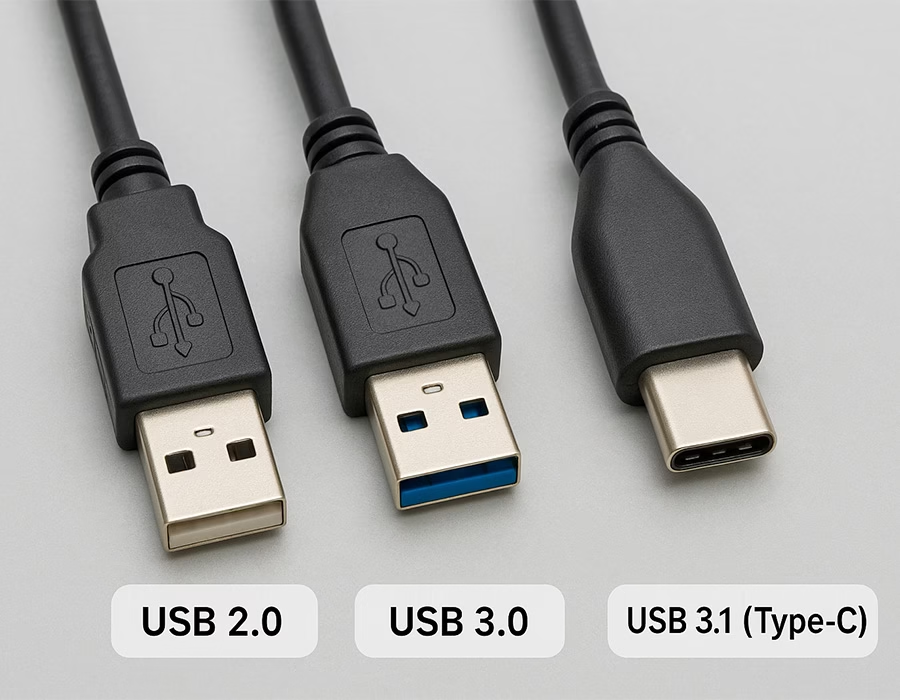
USB 3.x connectors resemble older USB plugs, but with subtle differences. For example, standard rectangular Type-A plugs on USB 3.0 cables are often blue to indicate SuperSpeed and feature extra internal pins.
The good news is that USB 3.0 Type-A is pin-compatible with USB 2.0 ports – the form factor remains unchanged. Plugging a USB 3.x cable into a USB 2.0 port results in 2.0 speeds.
Specialized plugs differ in their physical size: the USB 3.0 Type-B (found on printers/hubs) and Micro-B connections are physically larger or have extra sections to accommodate the additional SuperSpeed pairs. Those won’t fit into older USB 2.0 B or micro ports.
In brief, USB 3.x cables and devices are mostly backwards compatible electrically (they’ll work at 2.0 speed when necessary), but only if the plug matches the port design.
🔧 Looking to deploy USB cable assemblies that support both legacy and high-speed systems?
Romtronic offers custom USB 2.0 / 3.0 / 3.1 cable assemblies engineered for performance, durability, and smooth backward compatibility.
👉 Contact our engineering team for a customized solution →
Power Delivery Differences
USB 3.0 raised the power bar as well. A USB 2.0 port can supply up to 500 mA at 5V, but a USB 3.0 port can provide up to 900 mA. That increased current means speedier charging or powering of energy-hungry appliances.
For example, an external drive that struggled on a 2.0 port might draw enough current on a 3.0 port to perform reliably. USB 3.x cables and ports still carry 5V, but with stronger wiring, they can safely transmit the greater 900mA current.
Cable Length and Quality
In practice, always choose the shortest cable that meets your needs; using a bad or excessively long USB 3.x cable can result in lower speeds or failure.
Another practical difference is cable length: USB 2.0’s specification allows passive cables up to about 5 meters without signal loss, while USB 3.0/3.1 cables top out around 3 meters. Beyond these lengths, you’d need active repeaters or extenders.
In other words, a 10 m extension is possible for a keyboard (USB 2.0), but not for a high-speed external drive – that drive needs a short, high-quality USB 3.0/3.1 cable to maintain full speed.
Practical Use Cases
So, when do you use which cable? For low-bandwidth peripherals (keyboards, mice, basic printers), USB 2.0 cables are often fine. Anything designated as “High Speed” (480 Mbps) or “Full Speed” is typically USB 2.0. However, for data-intensive devices, such as external SSDs, rapid memory card readers, and 4K webcams or cameras, a USB 3.0/3.1 cable is recommended.
These devices frequently mark the port or cable with “SS” (SuperSpeed) or include blue inlays. The faster cable allows your PC to transfer files at multi-gigabit speeds, rather than being limited to 480 Mbps.
Also note: even if an older gadget is USB 2.0-only, plugging it into a USB 3.0 port still works – it just runs at the lower rate.
Engineers should always match the cable to the required specification: a 3.1 Gen2 link requires a certified 3.1 cable and port to achieve 10 Gbps.
| Feature | USB 2.0 | USB 3.0/3.1 Gen1 | USB 3.1 Gen2 |
|---|---|---|---|
| Release Year | 2000 | 2008 (3.0) / 2013 (3.1) | 2013 |
| Max Data Rate | 480 Mbps | 5 Gbps | 10 Gbps |
| Cable Length (max) | 5 m | 3 m | 3 m |
| Pin Count (Type-A/B) | 4 pins | 9 pins | 9 pins (same as 3.0) |
| Voltage / Current | 5 V @ 500 mA | 5 V @ 900 mA | 5 V @ 900 mA (with USB-PD up to higher) |
| Common Connectors | Type-A/B, Mini/Micro-B | Type-A/B, Micro-B, USB-C | USB-C, plus legacy Type-A/B |
| Backward Compatibility | – | Yes (to USB 2.0 speeds) | Yes (to USB 2.0/3.0 speeds) |
| Typical Use | Keyboard, Printer, etc. | External HDDs, 4K cams | NVMe SSD enclosures, docking stations |
⚡ Need premium USB 3.1 Gen2 assemblies for maximum throughput and reliability?
Romtronic supplies high-performance USB 3.1 / 3.2 Gen2 cable assemblies with precision shielding and superior materials to achieve full 10 Gbps speeds.
👉 Reach out for your custom specification today →
FAQs
A: Yes. USB 3.0 was designed to be backward-compatible. A USB 2.0 cable or device will work in a USB 3.0 port, but the link will run at USB 2.0 speeds.
A: USB 3.1 Gen1 is practically the same as USB 3.0 (both are 5 Gbps, SuperSpeed), whereas USB 3.1 Gen2 doubles that to 10 Gbps. A good USB 3.0 cable can support Gen1 speeds, but to achieve 10 Gbps, you need a cable rated for USB 3.1/3.2 Gen2. Gen2-capable cables are distinguished by labels or “SS+” markings.
A: Because they have more wires and pairs. A USB 2.0 cable contains four conductors, while a USB 3.0/3.1 cable has nine (including two high-speed pairs). The extra conductors and insulation make the cable larger.
A: Slightly, yes. USB 3.0 ports can supply up to 900 mA, compared to 500 mA for USB 2.0. This means devices can draw more power when connected to a USB 3.0 port. Accurate, fast charging often requires specialized charging methods or USB Power Delivery.
A: To achieve optimum throughput, connect devices that support 10 Gbps with a certified USB 3.1/3.2 Gen2 cable (with SS+ designation). Also, confirm that both ends and the host port support USB 3.1 Gen2. Otherwise, a SuperSpeed USB 3.0 (Gen1) cable delivers 5 Gbps. These typically use USB-C connectors, but Type-A-to-Type-C cables approved for Gen2 will also work.
.avif)
Sam Wu is the Marketing Manager at Romtronic, holding a degree in Mechatronics. With 12 years of experience in sales within the electronic wiring harness industry, he manages marketing efforts across Europe. An expert in cable assembly, wiring harnesses, and advanced connectivity solutions, Sam simplifies complex technologies, offering clear, actionable advice to help you confidently navigate your electrical projects.