Medical equipment often relies on USB cables carrying life-critical data. In a modern clinic, your new computer might only have USB-C ports, but your legacy device could have a 5-pin Mini-USB jack. To connect them, you’ll need the right cable. This guide explains how to safely and correctly connect a USB-C host (such as a laptop) to a Mini-B device. We’ll cover cable wiring, differences between connectors, and important medical safety standards.
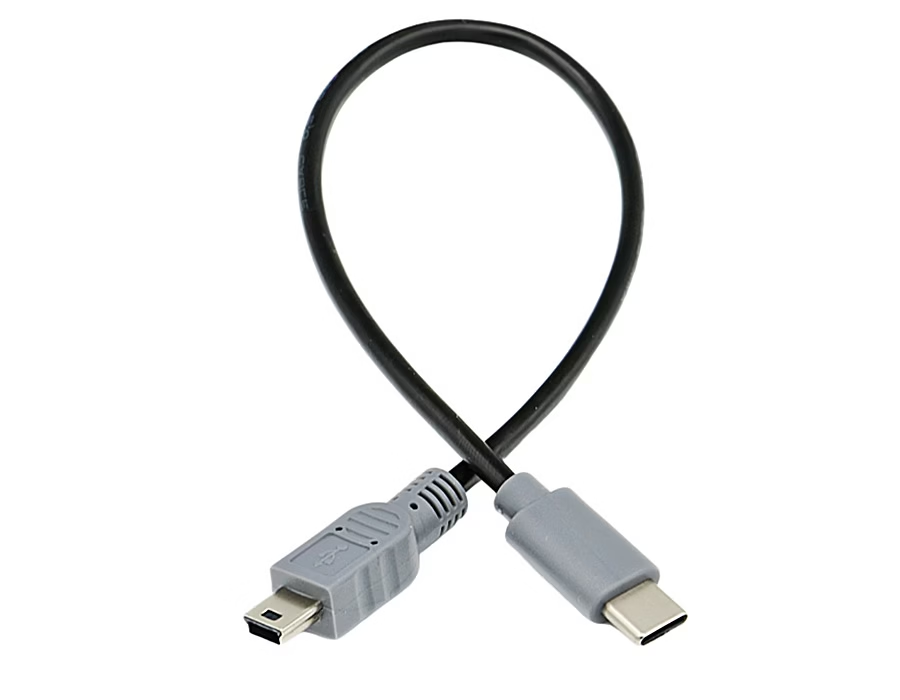
USB-C vs Mini-USB: Connectors and Pinouts
Modern laptops often have only USB-C ports. To connect an older device with a Mini-USB port, you’ll need a USB-C to Mini-B cable. These cables carry both power and USB 2.0 data signals. USB-C plugs are reversible and support USB 2.0 speeds (480 Mbps). Internally, a USB-C plug duplicates the D+ and D– data lines, so a cable with one pair of wires works either way.
| Feature | USB Mini-B (5-pin) | USB Type-C (24-pin) |
|---|---|---|
| Reversible Plug | No (fixed orientation) | Yes (flippable) |
| Pin Count | 5 (VBUS, GND, D+, D–, ID) | 24 (includes dual D+/D–, VBUS, GND, CC, etc.) |
| Data Speed | USB 2.0 (480 Mbps max) | USB 2.0 (480 Mbps) and above (USB3/4 multi-Gbps on capable devices) |
| Power Delivery | 5 V (~0.5 A in USB2.0 mode) | 5–20 V up to 5 A (100 W via PD) |
| Common Use | Older cameras, sensors, legacy medical tools | Modern PCs, phones, hubs |
| Medical Options | Rare (legacy devices) | Cables available with IEC/UL medical certification |
Table: Key differences between Mini-USB and USB-C connectors.
The Mini-B plug was widely used on older portable devices, but it’s now largely replaced by Micro-USB and USB-C. A Mini-B jack still appears on many legacy medical instruments. A USB-C port on modern equipment supports higher power and new protocols, but it still provides the basic 5V USB2 power and data lines by default.
Choosing the Right USB-C to Mini-USB Cable
Not all cables are equal. When selecting a USB-C to Mini-USB cable, look for:
- Data support: It must carry USB2.0 data, not just power. Ensure specs list “USB 2.0 data.”
- Wiring & Role: The cable’s Type-C end should act as a host and the Mini-B end as a device. A proper cable will use one D+ and D– pair, allowing it to work in either orientation.
- Shielding & Build: High-quality cables have good shielding. Medical cables often have thicker jackets and tighter braid shielding for reliability.
- Length: Keep the cable short (e.g., under 3 meters) to minimize signal loss. Long runs can degrade USB 2.0 signals.
- Connectors: Verify that one end is a USB-C (male) connector and the other is a Mini-USB B (male) connector.
Some vendors sell “legacy device” cables (for cameras or GPS) that fit USB-C to Mini-B. Always check the product details. If unsure, use a USB tester/multimeter to confirm the cable has both D+ and D– connections.
Compliance and Safety Standards
Medical cables must meet strict safety standards. Key requirements include:
- IEC 60601-1 / UL 60601-1: Requires double insulation (2×MOPP) and flame-resistant jackets (UL 94 V-0) to protect patients.
- ISO 13485: Quality management so each cable can be traced and tested.
- RoHS / REACH: No hazardous materials (e.g., lead, PVC) in the cable.
- ISO 10993: Biocompatibility of cable materials (e.g., silicone/FEP jackets) for sterilization compatibility.
- EMI Shielding: High-grade shielding to prevent interference with sensitive medical electronics.
Use medical-grade cables for any patient-contact application. For non-patient connections (back-of-device, lab use), a high-quality industrial cable that meets the above electrical specifications may suffice.
🩺 Looking for CE-marked and ISO 13485-certified cabling for medical devices?
Romtronic provides fully traceable medical cable assemblies that meet MDR requirements and deliver long-term reliability in patient-care environments.
👉 Request a consultation today →
Step-by-Step Connection
- Identify roles: Determine which device is the USB host. In most cases, the computer (USB-C) serves as the host, and the legacy instrument (Mini-USB) functions as the peripheral.
- Select the cable: Get a USB-C male to Mini-USB B male cable rated for USB2.0 data.
- Inspect the cable: Ensure the connectors and strain relief appear intact, and that the cable is well-shielded.
- Connect and power: Plug the Mini-B end into the device and the USB-C into the computer. The legacy device should power on from the 5 V bus if it draws USB power.
- Verify detection: The computer should recognize the device (you may need to install drivers or software).
- Troubleshoot if needed: If it doesn’t work, try a different cable or USB-C port. (Some hubs/adapters are power-only.)
Common Issues and Tips
- Charge-only cables: Some USB-C cables only supply power. Make sure yours is a data cable.
- Host/device roles: Legacy Mini-USB ports are nearly always device ports. You typically won’t need a USB OTG adapter.
- Driver/Port support: Ensure the USB-C port on your computer supports USB 2.0 data (nearly all do). Install any required drivers for the legacy device.
- Cable quality: Use well-built cables. In hospitals, a cable with better shielding and build quality reduces data errors and improves reliability.
Frequently Asked Questions
A: No. Standard USB-C cables often lack a Mini-USB end and may not carry data lines. You need a cable or adapter specifically with a USB-C male to Mini-USB B male wiring, supporting USB 2.0 data.
A: Most computer USB-C ports include data lines. Only some power adapters or docks have data-less USB-C ports. Always plug into a USB-C port on a computer or hub that supports data transfer.
A: For patient-connected devices, use cables with medical certifications (IEC60601-1, UL2601-1, etc.). For non-patient use, a high-quality industrial cable that meets the electrical specs is acceptable.
A: Yes – the link will run at USB 2.0 speed (480 Mbps) because Mini-USB is a USB 2.0 interface. You won’t achieve multi-gigabit USB 3/USB4 speeds with this legacy connection.
A: Yes. The legacy device can draw up to 5 V from the USB-C port (~500 mA) if it’s designed for USB charging. Just don’t exceed the device’s power rating.
Table: Quick Specs Comparison
| Specification | USB Mini-B (5-pin) | USB Type-C (USB-C) |
|---|---|---|
| Reversible Plug | No (fixed orientation) | Yes (flippable) |
| Data Interface | USB 2.0 (480 Mbps) | USB 2.0 (480 Mbps); USB3/USB4 multi-Gbps |
| Power Delivery | 5 V (≈0.5 A) | 5–20 V @ up to 5 A (≈100 W) |
| Shielding | Standard USB shielding | Often enhanced (esp. medical-grade) |
| Common Use | Older, legacy devices | Modern laptops, phones, new gear |
| Certifications | Typically none (legacy tech) | Cables available meeting medical (IEC/UL60601) |
The table compares USB-C’s advantages (more power, reversible plug) with Mini-USB’s simplicity (USB 2.0). In medical setups, both ends matter: use modern USB-C hosts, and always use certified, well-built cables to connect legacy Mini-USB devices reliably.
.avif)
Sam Wu is the Marketing Manager at Romtronic, holding a degree in Mechatronics. With 12 years of experience in sales within the electronic wiring harness industry, he manages marketing efforts across Europe. An expert in cable assembly, wiring harnesses, and advanced connectivity solutions, Sam simplifies complex technologies, offering clear, actionable advice to help you confidently navigate your electrical projects.